

Ever stared at your Scrivener compile output, blinking like a deer caught in headlights, wondering why your beautifully crafted manuscript now resembles a tangled ball of yarn? You’ve spent hours meticulously organizing your project, polishing every sentence, and perfecting your formatting—only to hit “Compile” and watch your masterpiece devolve into chaos. What went wrong? Why does your output file look like it was designed by a committee of sleep-deprived designers? The answer lies not in your writing, but in the enigmatic depths of Scrivener’s Compile panel. Let’s unravel this mystery together.
The Compile panel in Scrivener is a double-edged sword: powerful enough to transform your raw manuscript into a polished document, yet cryptic enough to leave even seasoned writers scratching their heads. It’s the bridge between your creative sanctuary and the outside world, where your words meet the harsh reality of printers, e-readers, and publishing platforms. But when this bridge collapses under the weight of misconfigured settings, your output file becomes a digital Frankenstein’s monster—stitched together from mismatched parts, with formatting that defies logic. So, how do you tame this beast and ensure your compile output is as pristine as your original vision?
The Compile Panel: Your Digital Alchemist’s Laboratory
Think of the Compile panel as a mad scientist’s lab, where your manuscript is the raw ingredient and the output is the final elixir. But unlike a straightforward recipe, Scrivener’s Compile panel offers a dizzying array of options, filters, and settings that can either elevate your work or reduce it to rubble. The key to mastery lies in understanding its core components: the Formats, the Compile Groups, and the Section Layouts.
Formats are the blueprints for your output. They dictate how your manuscript will appear in different mediums—whether it’s a print-ready PDF, an eBook, or a simple text file. Each format comes with its own set of rules, and choosing the wrong one can lead to formatting disasters. For instance, selecting “Ebook” when you’re aiming for a print document might result in awkward page breaks or misaligned text. Meanwhile, the “Print” format could introduce unnecessary margins or font sizes that clash with your design. The trick is to match your format to your output goal, like pairing wine with cheese—except here, the wine is your manuscript and the cheese is your formatting preferences.
Compile Groups: The Invisible Architects of Your Output
Now, let’s talk about Compile Groups—the unsung heroes (or villains) of your output file. These groups determine which parts of your manuscript are included in the final document and how they’re organized. If you’ve ever wondered why your chapter titles are missing or why your front matter appears in the middle of your book, blame the Compile Groups. They’re the invisible architects, shaping the structure of your output with the precision of a Swiss watchmaker—or the haphazardness of a toddler with a box of LEGO.
Scrivener’s default settings often lump everything into a single group, which can lead to a jumbled mess. To avoid this, you’ll want to create custom Compile Groups that reflect your manuscript’s structure. For example, you might separate your front matter (title page, copyright page, acknowledgments) from your main content and back matter (appendices, index). This ensures that each section gets the formatting it deserves, without clashing with the rest of your document. Think of it as organizing your closet: if you toss everything into one pile, you’ll end up with a tangled nightmare. But if you sort your clothes by type, color, and season, you’ll create a harmonious, functional space.
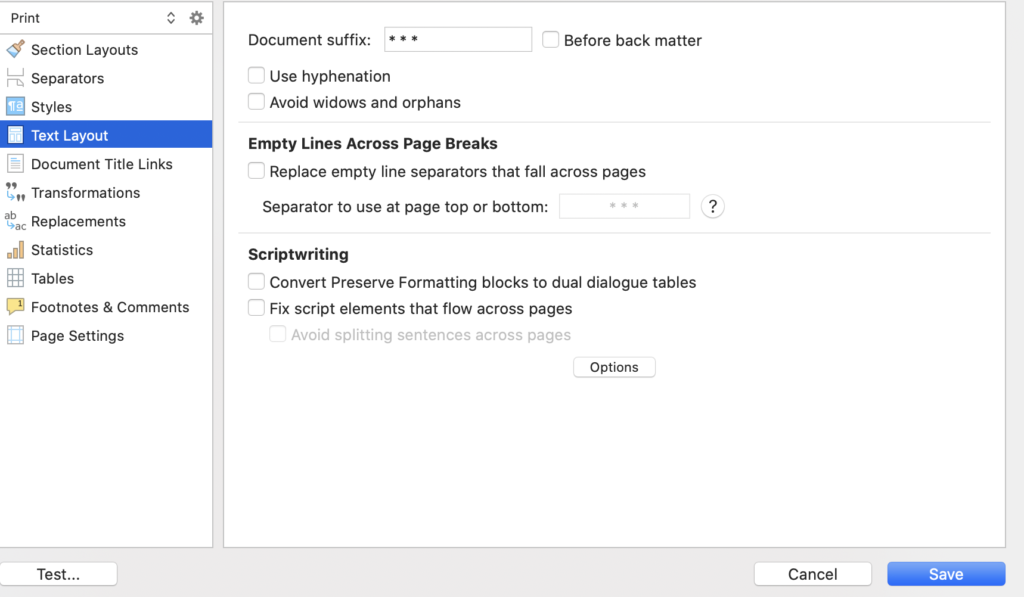
Section Layouts: The Secret Sauce of Formatting
If Compile Groups are the architects, then Section Layouts are the interior designers—the ones who decide how each part of your manuscript looks. These layouts control everything from font styles to spacing, indentation to headers. A well-crafted Section Layout can make your output file look like it was designed by a professional typesetter, while a poorly configured one can turn your manuscript into a typographic disaster zone.
The most common pitfall here is overcomplicating things. It’s tempting to create a new Section Layout for every minor variation in your manuscript, but this can lead to inconsistency and confusion. Instead, aim for simplicity. Use a few well-designed layouts that cover the majority of your needs. For example, you might create a “Chapter Title” layout for your chapter headings, a “Body Text” layout for your main content, and a “Scene Break” layout for those dramatic pauses between scenes. Keep these layouts clean and consistent, and your output file will thank you.
Another critical aspect of Section Layouts is their interaction with your Compile Groups. If you’ve set up your groups to include only specific parts of your manuscript, make sure your Section Layouts are tailored to those groups. For instance, your front matter might require a different font or spacing than your main content, and your back matter might need yet another set of rules. This level of granularity ensures that each section of your manuscript gets the treatment it deserves, without clashing with the rest of your document.
The Perils of Overriding: When Good Formatting Goes Bad
Here’s where things get tricky: Scrivener’s Compile panel offers the ability to override your Section Layouts with manual formatting. This might seem like a lifesaver when you need to tweak a single element, but it’s a slippery slope that can quickly spiral into chaos. Every manual override is a potential formatting landmine, waiting to explode when you least expect it.
Imagine you’re compiling your manuscript for print, and you notice that a single paragraph is slightly indented when it shouldn’t be. You decide to fix it manually, only to realize later that your fix has caused a cascade of other formatting issues. Suddenly, your carefully crafted output file looks like it was designed by a committee of sleep-deprived designers—again. The lesson here is simple: avoid manual overrides whenever possible. If you must use them, document them meticulously so you can track their impact on your output.
Testing and Iteration: The Unsung Heroes of Clean Output

No discussion of Scrivener’s Compile panel would be complete without mentioning the importance of testing and iteration. Your first compile is rarely your best compile. It’s a starting point, a rough draft of your output file that will likely require several rounds of tweaking and refinement. The key is to test your output early and often, using Scrivener’s built-in Preview feature to catch formatting issues before they become ingrained in your final document.
Start by compiling a small section of your manuscript—perhaps a single chapter or a few scenes—and review the output carefully. Look for inconsistencies in formatting, spacing, and alignment. Pay special attention to the elements that are most important to you, whether it’s your chapter titles, your scene breaks, or your font choices. If something doesn’t look right, go back to the Compile panel and adjust your settings. Repeat this process until your output file meets your standards. It’s a tedious process, but the payoff is a polished, professional-looking document that does justice to your hard work.
Embracing the Chaos: When to Let Go
Despite your best efforts, there will come a time when your output file still looks like a mess, no matter how many tweaks you make. Maybe the margins are off. Maybe the fonts are inconsistent. Maybe your scene breaks are appearing in the wrong places. At this point, it’s easy to throw your hands up in frustration and declare Scrivener’s Compile panel a lost cause. But before you do, take a deep breath and remember: perfection is a myth. Even the most meticulously crafted manuscripts require a few compromises.
Sometimes, the best solution is to accept that your output file won’t be perfect—and that’s okay. After all, the goal of compiling your manuscript isn’t to create a flawless document, but to create a document that effectively communicates your ideas to your readers. If your output file is readable, if it conveys your message clearly, and if it looks professional enough to pass muster with your publisher or readers, then you’ve succeeded. The Compile panel is a tool, not a tyrant. Use it wisely, but don’t let it dictate your creative process.
So, the next time you find yourself staring at a compile output that looks like it was designed by a committee of sleep-deprived designers, take a step back and remember: you’re not alone. Scrivener’s Compile panel is a complex beast, but with a little patience, a lot of testing, and a willingness to embrace the chaos, you can tame it. And when you finally hit “Compile” and see your manuscript transformed into a polished, professional document, you’ll know that all the effort was worth it.


Leave a Comment