

Exporting a 3D model for augmented reality (AR) can feel like navigating a labyrinth where every turn presents a new technical hurdle. You’ve spent hours sculpting, refining, and perfecting your digital creation, only to hit a wall when it’s time to bring it into the real world. The frustration isn’t just about the export process itself—it’s the sinking realization that all your hard work might be undone by a single misaligned vertex or an incompatible file format. But here’s the secret: the chaos isn’t random. It’s a puzzle with a method, and once you understand the underlying principles, exporting for AR becomes less of a chore and more of an exhilarating challenge.
Imagine standing in a room where the walls shift and the furniture rearranges itself at will. That’s the essence of AR—blurring the line between the digital and physical worlds. But before your model can dance in this dynamic space, it must survive the export gauntlet. The key lies in mastering the trifecta of geometry integrity, texture fidelity, and file compatibility. Each of these elements is a thread in the larger tapestry of AR integration, and pulling one too hard can unravel the entire design. Let’s dive into how you can tame this process without sacrificing your sanity—or your model’s integrity.
The Geometry Gambit: Ensuring Your Model Doesn’t Collapse Under Scrutiny
AR environments are unforgiving. They magnify every flaw, every imperfection in your model’s geometry. A single non-manifold edge or a rogue polygon can turn your pristine creation into a glitchy nightmare. The first step in exporting for AR is to audit your model’s structural integrity. Start by running a mesh analysis in your 3D software. Tools like Blender’s “3D-Print Toolbox” or Maya’s “Mesh > Cleanup” can flag issues such as overlapping faces, zero-area polygons, or non-manifold edges. These aren’t just aesthetic concerns—they’re ticking time bombs that will detonate in AR.
Next, consider the polycount. AR applications often impose strict limits on the number of polygons your model can have. A high-poly model might look stunning in a render, but in AR, it can tank performance, causing lag or even crashing the app. Aim for a polycount sweet spot—enough detail to impress, but not so much that it bogs down the device. A good rule of thumb is to keep your model under 100,000 triangles for mobile AR, though this varies depending on the platform. If your model is too dense, use decimation tools to simplify it while preserving its silhouette and key features.
Finally, pay attention to the scale and orientation of your model. AR environments operate in real-world units, so a model scaled in centimeters won’t play nicely in a scene where meters are the standard. Double-check your units in the export settings, and ensure your model is aligned with the global axes. A model rotated 90 degrees off-axis might look fine in your viewport, but in AR, it could appear sideways or upside down—a rookie mistake that’s easily avoided with a quick pre-flight check.
Texture Traps: Avoiding the Pitfalls of Pixelated Disasters
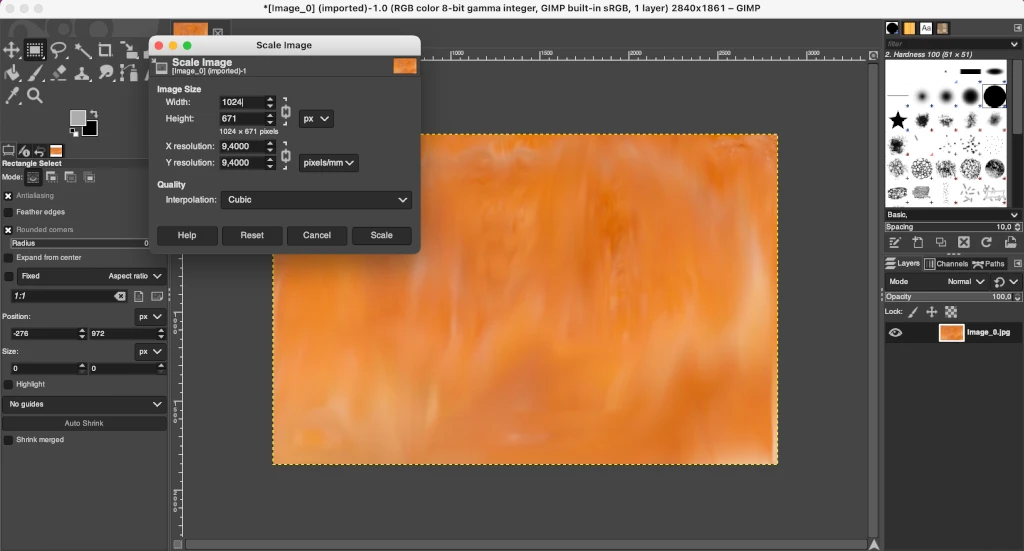
Textures are the soul of your model, the difference between a flat, lifeless object and one that feels tangible and real. But exporting textures for AR is a minefield of potential pitfalls. The first rule? Resolution matters. A texture that looks crisp on your monitor might turn into a blurry mess in AR, especially on high-DPI devices. Aim for textures that are powers of two in size (e.g., 512×512, 1024×1024) to ensure compatibility with most AR frameworks. Avoid stretching textures across UV seams, as this can create visible distortions in AR.
Next, consider the texture format. Not all formats are created equal, and some are better suited for AR than others. PNG is a safe bet for lossless quality, but it can be bulky. JPEG offers better compression but may introduce artifacts. For AR, where performance is critical, consider using compressed texture formats like ASTC or ETC2, which are supported by most modern AR platforms. These formats balance quality and file size, ensuring your textures load quickly without sacrificing too much detail.
Another often-overlooked aspect is the UV mapping. Poor UV unwrapping can lead to texture stretching or seams that are visible in AR. Use tools like Blender’s “Smart UV Project” or Maya’s “UV Layout” to ensure your UVs are clean and efficient. If your model has complex geometry, consider baking high-resolution details into a normal map to reduce the polycount while maintaining visual fidelity. This technique is a game-changer for AR, where performance and appearance must coexist.
File Format Fiasco: Navigating the Compatibility Maze
The file format you choose can make or break your AR experience. Not all formats are universally supported, and some are better suited for specific platforms. The most common formats for AR are glTF (.gltf/.glb), FBX, and USDZ. Each has its strengths and weaknesses, so let’s break them down.
glTF (GL Transmission Format) is the gold standard for AR and real-time applications. It’s lightweight, supports animations, and is widely supported by platforms like Unity, Unreal Engine, and WebXR. The binary version (.glb) is particularly efficient, as it combines geometry, textures, and animations into a single file. If you’re targeting web-based AR or mobile apps, glTF is your best friend.
FBX is another popular format, especially in game engines like Unity and Unreal. It supports a wide range of features, including bones, morph targets, and materials. However, FBX files can be larger and less optimized for web-based AR. If you’re working in a game engine, FBX is a solid choice, but be mindful of its size and complexity.
USDZ is Apple’s proprietary format for AR Quick Look and other iOS AR experiences. It’s designed to be a universal format that preserves materials, textures, and animations. However, USDZ has limitations—it doesn’t support all features of glTF or FBX, and it can be tricky to export from some 3D software. If you’re targeting iOS devices, USDZ is a must, but be prepared to jump through a few hoops to get it right.
Regardless of the format you choose, always test your exported model in the target AR environment before finalizing. What looks perfect in your 3D software might behave unpredictably in AR, so a thorough pre-flight check is non-negotiable.
The Animation Enigma: Bringing Your Model to Life in AR
Static models are fine, but AR is all about interactivity. If your model includes animations, exporting them correctly is crucial. The first step is to ensure your animation rig is clean and optimized. Remove any unnecessary bones or constraints that could bloat the file size or cause glitches in AR. Next, check the animation curves for any sudden jumps or unnatural movements—AR environments amplify imperfections, so smoothness is key.
When exporting animations, pay attention to the frame rate. Most AR platforms expect animations to run at 30 or 60 FPS. If your animation is keyed at a lower frame rate, it might stutter or appear choppy in AR. Use your 3D software’s animation tools to retime or resample your animation if necessary.
Another critical consideration is the animation format. glTF supports skeletal animations, morph targets, and even shape keys, making it a versatile choice for AR. FBX also supports animations but can be less efficient. If you’re using USDZ, be aware that it has limited support for complex animations, so keep your rigs simple and avoid nested hierarchies.
Finally, test your animated model in AR to ensure the movements translate well to the real world. A model that looks fluid in your viewport might appear jittery or unnatural in AR, so always validate your work in the target environment.
Lighting and Materials: The Unsung Heroes of AR Realism
AR isn’t just about geometry and textures—it’s about how your model interacts with light. The materials and lighting setup in your 3D software won’t always translate directly to AR, so you’ll need to adjust your approach. Start by using physically based rendering (PBR) materials. PBR materials are designed to look realistic under different lighting conditions, which is essential for AR where lighting can vary wildly depending on the environment.
When exporting materials, ensure they’re compatible with the target AR platform. glTF and USDZ support PBR workflows, but the way they handle materials can differ. For example, glTF uses a metallic-roughness workflow, while USDZ uses a specular-glossiness workflow. Double-check the documentation for your target platform to avoid surprises.
Lighting is another critical factor. AR environments often use environment lighting to simulate real-world conditions. If your model relies on studio lighting in your 3D software, it might look out of place in AR. Consider baking your lighting into textures or using an HDRI (high dynamic range image) to create a more natural look. Alternatively, design your model to be lit dynamically in AR, using the platform’s built-in lighting system.
Finally, test your model under different lighting conditions to ensure it looks good in various AR environments. A model that shines in a bright, sunny scene might look dull in a dimly lit room, so always validate your work in realistic conditions.
Exporting a 3D model for AR doesn’t have to be a soul-crushing experience. By focusing on geometry integrity, texture fidelity, file compatibility, animations, and lighting, you can navigate the process with confidence. The key is to approach each step methodically, testing and validating your work at every stage. AR is a dynamic medium, and your model must be ready to shine in its unpredictable, ever-changing environment. With the right preparation, your creation won’t just survive the export gauntlet—it’ll thrive in the augmented world.


Leave a Comment